Xtream Codes vs M3U: Which IPTV Login Should You Use?
A plain-English comparison of the two common IPTV logins: what Xtream Codes and M3U are, which to use on each device, how MAG portals differ and how to fix login errors.
When your IPTV plan is activated, the message from support usually contains one of two things: a short set of details labelled Xtream Codes, or a long web address ending in something like "m3u". Sometimes it contains both. If you have never used IPTV before, it is not obvious what the difference is, which one to choose, or why your player asks for one and not the other.
This guide explains both login types in plain language, compares them side by side, and shows you how to enter each one correctly. It also covers MAG portals, which work differently again, and the mistakes that cause most login errors. By the end you will know which option to use on each of your devices, and what to do when a player refuses to sign in.
Two ways to tell a player where your channels are
An IPTV player app is empty when you first install it. It has no channels of its own. To fill it, you have to tell it where your subscription lives and prove that you are allowed to use it. Xtream Codes and M3U are simply two different ways of doing that.
The short version
- Xtream Codes is a login: a server address, a username and a password. The player signs in and asks the server for everything: live channels, on-demand films and series, and the TV guide.
- M3U is a playlist: a single web link to a file that lists your channels and where to stream them from. The player downloads the list and shows what is in it.
Both give you access to the same subscription. The difference is in how much the player can do with it and how easy it is to set up.
Xtream Codes explained
Xtream Codes takes its name from the system it was originally built for, but today it is best understood as a standard way for IPTV players to log in.
What the details look like
An Xtream Codes login has three parts:
- Server address, also called the host, portal URL or DNS. It looks like a web address and often includes a port number, for example "http://example-server.com:8080".
- Username, a string of letters and numbers.
- Password, another string of letters and numbers.
Some players also ask you to give the playlist a name. That is just a label for your own reference; call it "BexyTV" or anything you like.
What the player does with it
When you sign in with Xtream Codes, the player talks to the server directly. It asks for the list of live channel categories, the on-demand film and series library, the TV guide, and account information such as your plan's expiry date. Because the player can ask for each part separately, it can organise everything neatly into sections.
Advantages of Xtream Codes
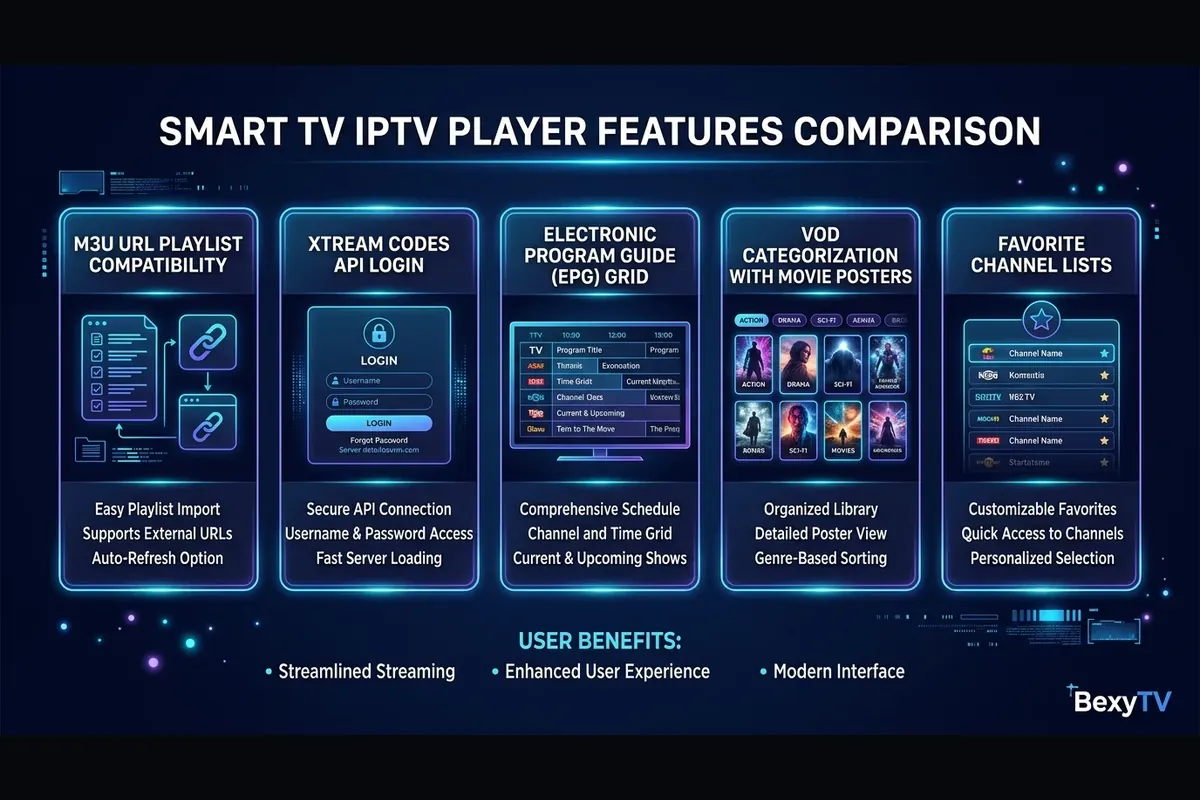
- Everything in one place. Live TV, films, series and the guide all come through the same login.
- Organised content. Categories, posters and descriptions for on-demand titles usually appear automatically.
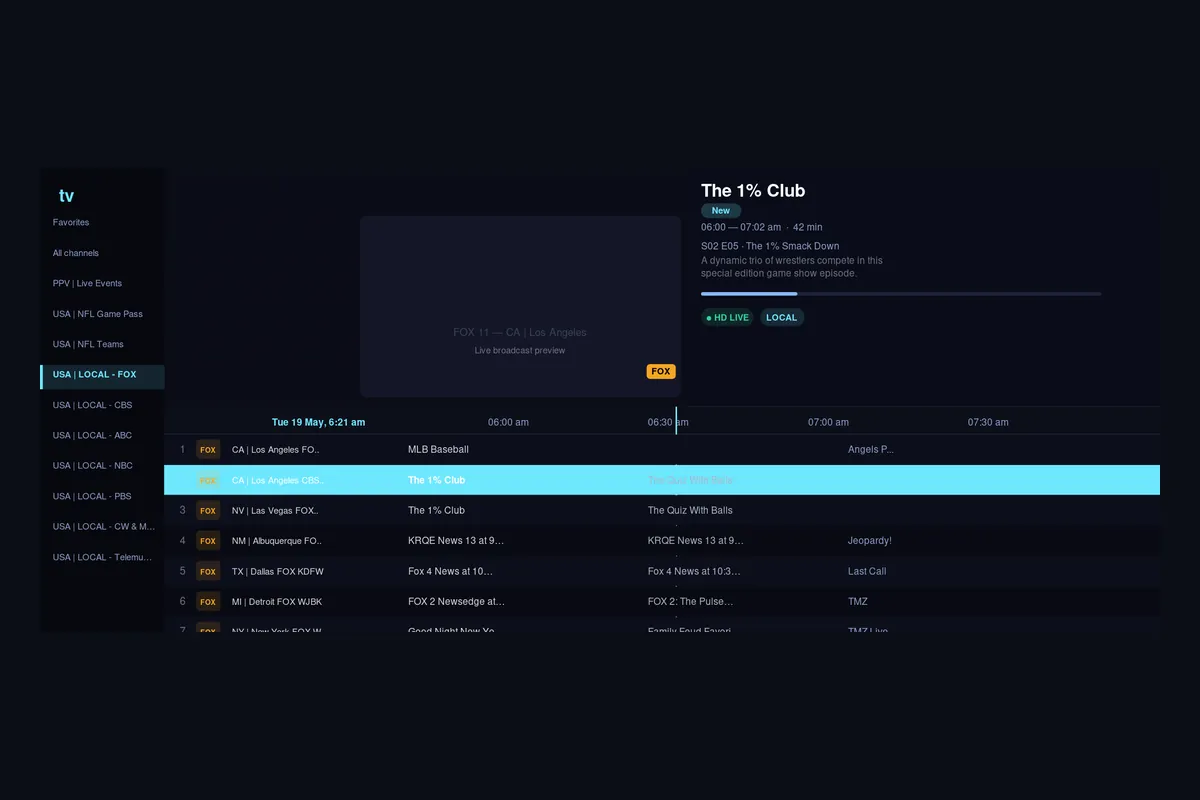
- The guide just works. Most players load the TV guide automatically with an Xtream login, with no extra address to enter.
- Account information. Many players show your subscription's expiry date and screen count.
- Short to type. Three short fields are easier to enter on a TV remote than one long link.
Drawbacks
- Three fields to get right. A mistake in any one of them stops the login.
- Not every player supports it. Almost all dedicated IPTV players do, but general media players such as VLC do not.
M3U explained
M3U is an older and simpler format. It began as a way to list music files and was adopted for IPTV because it is easy for any player to read.
What the link looks like
An M3U link is a single, long web address. It usually contains the server, your username and password, and a few settings, all in one line. It often ends in "type=m3u" or "type=m3u_plus", or in ".m3u".
What the player does with it
The player downloads the file at that address. Inside is a list: for each channel, a name, a group or category, sometimes a logo address and a guide identifier, and the address of the stream itself. The player reads the list and shows the channels.
Advantages of M3U
- Works almost everywhere. Nearly every player that can play network streams can open an M3U link, including VLC on computers.
- One thing to paste. If you can copy and paste, as on a computer or phone, a single link is very quick to set up.
- Easy to move between apps. The same link works in many different players.
Drawbacks
- Long and awkward to type. Entering a long link with a TV remote is slow and error-prone.
- Less structure. On-demand content may appear as a long flat list rather than tidy sections, depending on the player.
- The guide may need adding separately. Some players need a second address, for the TV guide data, before listings appear. Our TV guide article explains how the guide works.
- Large file. With a big line-up the playlist file is large, and older devices can take a while to load it.
Side by side
| Xtream Codes | M3U playlist | |
|---|---|---|
| What you enter | Server address, username, password | One long link |
| Live TV | Yes | Yes |
| On-demand films and series | Yes, usually organised into sections | Often included, but sometimes as a long list |
| TV guide | Usually loads automatically | May need a separate guide address |
| Account details in the app | Often shown | Rarely shown |
| Easy on a TV remote | Yes, three short fields | Harder, one long link |
| Works in general media players like VLC | No | Yes |
| Best for | Dedicated IPTV players on TVs and sticks | Computers, quick tests, simple players |
Which one should you use?
For most people, on most devices, the answer is simple.
Use Xtream Codes when you can
If your player supports Xtream Codes, use it. On a Fire TV Stick, Android TV, Apple TV, a Smart TV or a phone with a dedicated IPTV player, Xtream gives you the most complete and best-organised experience: live channels, the full on-demand library and the TV guide, all from three short fields.
Use M3U when Xtream is not an option
If your player only accepts playlists, or you are using a general media player such as VLC on a Windows PC or Mac, use the M3U link. It is also handy for a quick test on a computer, because you can simply paste it.
Device by device
- Fire TV and Android TV. Xtream Codes in a dedicated player. See the Fire TV Stick guide.
- Samsung and LG Smart TVs. It depends on the player: some accept Xtream on the TV, others ask you to add an M3U link or Xtream details through their website using a device ID.
- Apple TV, iPhone and iPad. Xtream Codes in a player from the App Store.
- Android phones and tablets. Xtream Codes in a dedicated player.
- Windows and Mac. Xtream in a dedicated IPTV player, or M3U in VLC.
- MAG boxes. Neither: these use a portal, explained below.
What about MAG portals?
MAG set-top boxes work differently. Instead of a login or a playlist, they connect to a portal address. The box identifies itself to the portal using its MAC address, a unique code printed on a sticker underneath. Before the box can connect, support has to register that MAC address against your plan.
Setting up a MAG box is therefore a two-step process: send support the MAC address, then enter the portal address they give you in the box's settings. The MAG box guide walks through every screen.
Entering your details correctly
Most login problems come from small typing mistakes. A few habits avoid nearly all of them.
Copy exactly, character by character
Usernames and passwords are case-sensitive: "A" and "a" are different. Watch out for characters that look alike, such as the number zero and the capital letter O, the number one and the lowercase L, or the capital I and lowercase l. If you can, copy and paste rather than retyping.
Include the whole server address
The server address must include the "http://" at the start and, if there is one, the port number after the colon, for example ":8080". Leaving out the port is a very common reason for a login to fail.
No extra spaces
When details are copied from a message, a space sometimes sneaks in at the beginning or end. Players treat that space as part of the username or password, and the login fails. Check the start and end of each field.
Use a phone to help on a TV
Typing on a TV with a remote is slow. Some players let you add your details through a website on your phone or computer, using a code shown on the TV. Others support a phone keyboard app for the TV. Both save time and mistakes.
Troubleshooting login problems
If a player will not accept your details, work through these checks.
- Re-enter every field by hand, carefully, checking capitals and look-alike characters.
- Make sure the server address includes "http://" and the port number.
- Remove any spaces at the start or end of each field.
- Check that your plan or trial is active and has not expired.
- Make sure you are not already using every screen your plan allows on other devices.
- Try the other login type: if Xtream fails, try the M3U link, or the other way around.
- Restart the device and try again.
- Send support a photo of the error message on screen.
When you contact support about a login problem, include the player app's name, your device model and a photo of the error. Most login issues are solved in a single reply once support can see exactly what the player says.
"Invalid login" or "Authorization failed"
This almost always means one of the three Xtream fields does not match: a typo, a missing port number, or a stray space. It can also appear if the plan has expired.
The playlist loads but shows no channels
With an M3U link, check that the whole link was copied, because a link cut short can still look valid. Large playlists can also take a minute or two to load on older devices.
Channels load but the guide is empty
With Xtream, give the guide a few minutes, then refresh it in the player's settings. With M3U, the player may need a separate guide address; ask support for it.
Keep your details private
Your login gives access to your subscription, so treat it like a password. Do not post it online or share it outside your household. Shared logins quickly use up every screen on your plan, which causes streams to stop for you, and sharing breaks the terms of service. If you think your details have been shared, contact support.
Frequently asked questions
Are Xtream Codes and M3U different subscriptions?
No. They are two ways of accessing the same subscription. You get the same channels either way.
Which is better for watching on a TV?
Xtream Codes, in a dedicated IPTV player. It is easier to enter with a remote and usually gives better organisation and an automatic TV guide.
Can I use both at the same time?
You can set up both on different devices, but they share the same screen limit. Each device that is playing counts as one screen, whichever login type it uses.
Why does VLC only accept M3U?
VLC is a general media player, not an IPTV app. It can open playlists of streams, but it does not support the Xtream login system.
Do I need a new login for each device?
No. Use the same details on every device. Your plan's screen count limits how many can play at once.
What is the port number in the server address?
It is the part after the colon at the end of the server address, such as ":8080". It tells the player which "door" on the server to use. Leaving it out is one of the most common login mistakes.
The bottom line
Xtream Codes and M3U are two keys to the same door. Use Xtream Codes in a dedicated player whenever you can, because it brings live TV, on-demand content and the guide together with the least effort. Use M3U for computers, simple players and quick tests. If your device is a MAG box, use the portal instead. And when a login fails, check the small things first: capitals, the port number and stray spaces. If you are still stuck, BexyTV support is on WhatsApp around the clock.
Got your login and not sure where to put it? Open the setup guide for your device, step by step.
Open the setup guides