The IPTV TV Guide (EPG): How It Works and How to Fix It
Everything about the electronic programme guide on IPTV: where the listings come from, how to read each view, favourites and catch-up, and fixes for empty, outdated or wrong-time guides.
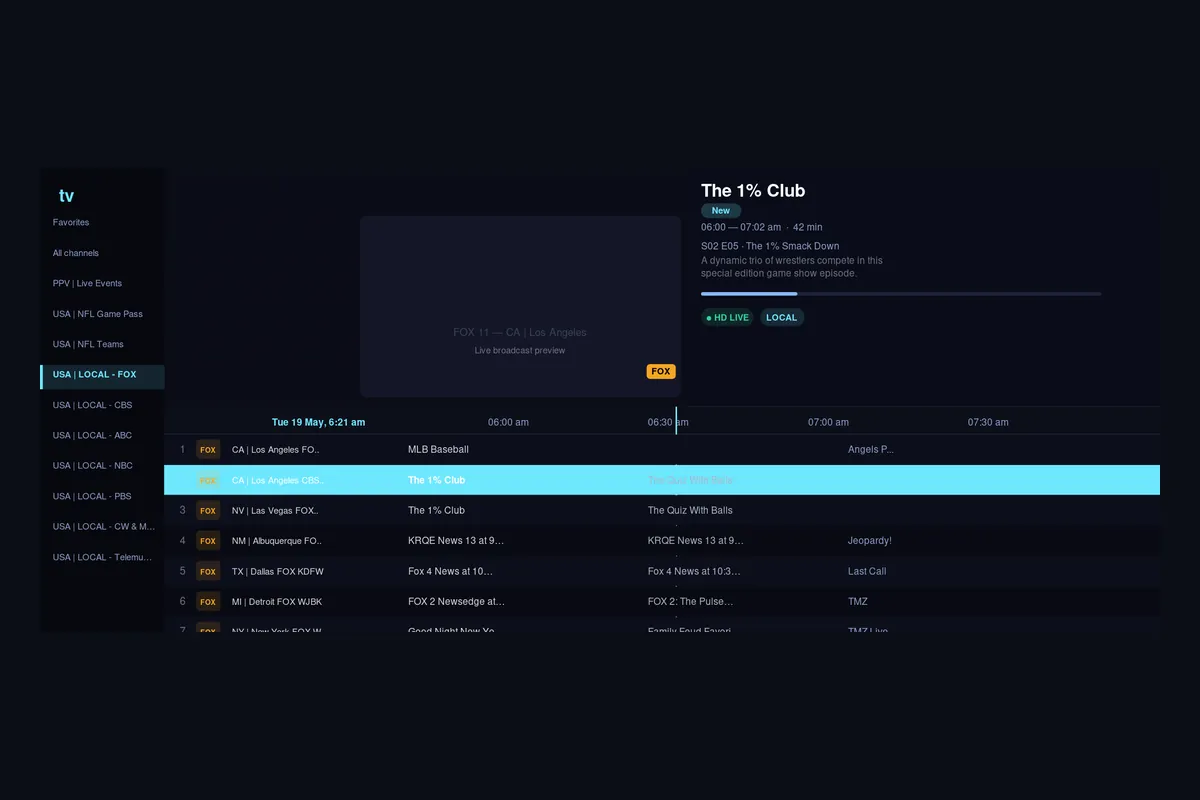
Anyone who grew up with cable remembers pressing the Guide button and scrolling through a grid of channels and times. IPTV has the same thing, and for many viewers it is the feature they end up using most. It is called the EPG, short for electronic programme guide, and it turns a long list of channels into something you can actually plan an evening around.
This article explains what the EPG is, where its information comes from, how to read the different layouts, and how to get more out of it with favourites, reminders and catch-up. It also covers the most common EPG problems, such as a blank guide or listings that are an hour out, and how to fix each of them. Everything here applies to BexyTV, and most of it applies to any IPTV service.
What the EPG is
The EPG is an on-screen schedule. For each channel it shows what is on now, what comes next, and usually what is planned for the rest of the day and beyond. Most guides also show extra detail for each programme: a short description, the start and end times, the episode or season number, and sometimes the genre or age rating.
How it differs from the channel list
Your channel list tells you which channels you have. The EPG tells you what is on them. Without a guide you would have to open channels one by one to see what is playing; with it, you can scan dozens of channels at a glance and jump straight to the one you want.
Why it matters more with IPTV
An IPTV line-up can be very large. BexyTV includes more than 50,000 live channels, grouped by country and category. Scrolling through that many channels without a guide would be tiring. The EPG is what makes a large line-up usable: you look at the schedule, not the channel numbers.
Where the guide information comes from
It helps to know how the EPG gets onto your screen, because it explains most of the problems people run into.
Broadcast schedules, delivered as data
TV channels publish their schedules in advance. These schedules are collected and turned into a standard data format, often called XMLTV. Your IPTV service provides that data to your player, matched to the channels in your line-up.
Your player puts it on screen
The player app downloads the guide data, matches each listing to the right channel, and displays it. Different players present the same information in different ways, which is why the guide on a Fire TV Stick may look quite different from the guide in a phone app, even with the same subscription.
Matching is the key step
Each channel in your list has an identifier that links it to its guide data. When the identifiers match, the listings appear. When they do not, the channel plays perfectly but shows "No information" in the guide. This matching is handled for you, but it explains why a newly added or renamed channel can sometimes be missing listings for a short time.
Reading the guide
Most IPTV players offer more than one way to look at the guide. It is worth knowing them all, because each one suits a different moment.
The grid view
This is the classic TV guide. Channels run down the left side, time runs across the top, and each programme is a block whose width shows how long it lasts. A vertical line marks the current time. The grid is ideal for planning an evening: you can see at a glance what is on across many channels over the next few hours.
Now and next
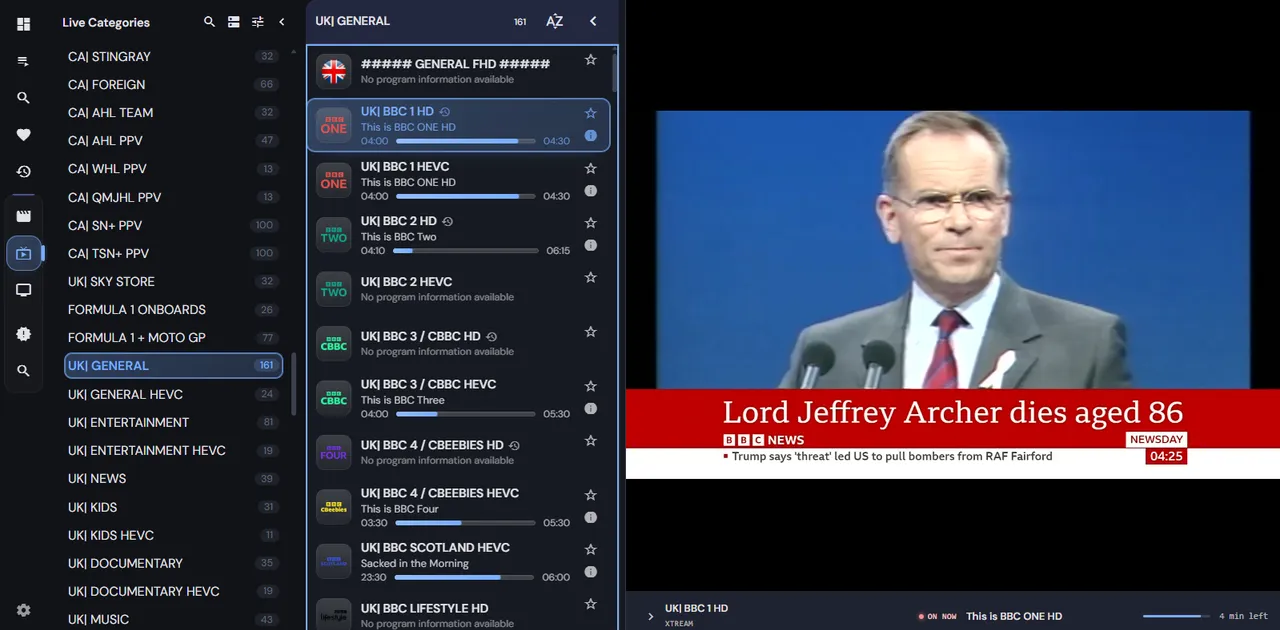
A compact view shows only the current programme and the one after it, often in a strip at the bottom of the screen while you watch. It is perfect for channel surfing: you see what is on now and whether it is worth staying.
The single-channel schedule
Selecting one channel often opens its full schedule for the day or the week. This is useful for a favourite channel, or for checking when a particular programme or match starts.
Programme details
Pressing on a programme block usually opens its details: a description, the start and end times, episode information and sometimes a progress bar showing how far into the programme you are. Some players add buttons here for reminders, recording or catch-up.
Make the guide work for you
Once you know how to read the guide, a few habits make it far more useful.
Build a favourites list
Most players let you mark channels as favourites. Do this for the ten or twenty channels you actually watch, then open the guide filtered to favourites only. Instead of scrolling past thousands of channels, you see a short, personal schedule. It is the single most useful thing you can do with an IPTV guide.
Browse by category
BexyTV channels are organised into categories by country and type: US locals, sport, news, kids, documentaries and more. Opening the guide for a single category, such as sport, shows you every match on now and later across all the sport channels at once. This is how many viewers find the games they want on a busy weekend.
Set reminders
Some players let you set a reminder on a future programme. When it is about to start, the player shows a notification or switches to the channel. This is handy for a match that starts late at night or a film you do not want to miss.
Search the guide
Many players include a search that looks through programme titles in the guide, not just channel names. Searching for a team, a show or a film tells you which channel is showing it and when.
Catch-up and the guide
Catch-up lets you go back and watch a programme that has already aired, directly from the guide. Where it is available, past programmes in the guide become playable: you scroll back in the grid, select a programme from earlier in the day, and press play.
Whether catch-up works depends on the channel and on the player you use. Not every channel offers it, and not every player displays it. If catch-up matters to you, ask support which channels support it and which player shows it best on your device.
Fixing common EPG problems
Most guide problems have simple causes. Here are the ones we see most often and how to fix them.
The guide is completely empty
After the first sign-in, the player has to download the full guide. For a large line-up this can take a few minutes. Give it time, then close and reopen the player. If it is still empty, look in the player's settings for an option called Update EPG, Refresh guide or Reload EPG, and run it.
If nothing appears even after refreshing, check that the player is set to use the guide provided with your subscription. In some players with an M3U login, the guide address has to be added separately. Our article on Xtream Codes and M3U explains this in more detail, and support can send you the correct guide address if you need it.
Some channels have listings, others do not
This usually means those channels do not have a matching guide entry. It is normal for a small number of channels, particularly event channels, pay-per-view slots and some international channels, to have no schedule at all. If a major channel you watch regularly shows no information, send its name to support so they can check the matching.
Listings are an hour out
When the guide shows programmes starting an hour early or late, the cause is almost always a time-zone setting. Check that the time zone and the date and time are correct on the device itself. Some players also have their own EPG time offset or time-shift setting; adjust it by the number of hours the listings are out. Daylight-saving changes can trigger this, so it often appears in spring and autumn.
The guide is out of date
If the guide shows yesterday's programmes, it has not refreshed. Most players update the guide automatically every day, but if the device has been in standby for a long time or the update failed, run a manual refresh. You can usually set how often the guide updates in the player's settings.
The guide is slow to open
A very large guide can make older devices sluggish. Limiting the guide to your favourites or to a few categories helps a lot. Clearing the player's cache and restarting the device, as described in our buffering guide, can also speed things up.
EPG tips for different devices
The basics are the same everywhere, but each type of device has its quirks.
- Fire TV and Android TV. Full-featured players on these devices usually offer the richest guides, with grids, categories, reminders and catch-up. They are a good choice if the guide matters to you. See the Fire TV Stick guide.
- Samsung and LG Smart TVs. Guide features vary between player apps. Some show a full grid; others only now-and-next. If you want a better guide on a Smart TV, ask support for a player recommendation.
- Apple TV. Players from the App Store often have polished guides that work well with the Siri Remote.
- MAG boxes. The portal includes its own guide, which loads with the channels.
- Phones and tablets. Guides are usually simplified for smaller screens, but favourites and search work well on touch screens.
- Computers. Dedicated IPTV players show a full guide; a general media player like VLC may not display one at all.
If your player's guide does not suit you, a different player app may suit you much better. The guide is part of the app, not the subscription. Support can recommend a player with a strong EPG for your device.
Frequently asked questions
Is the TV guide included with BexyTV?
Yes. Every BexyTV plan includes the EPG at no extra cost. Your player loads it automatically after you sign in.
Why does my guide look different from my friend's?
The guide is drawn by the player app, and different apps lay it out differently. The underlying information is the same.
How far ahead does the guide show?
That depends on the channel and on the player. Most guides show at least the rest of the day, and many show several days ahead.
Can I record programmes from the guide?
Some player apps on some devices offer recording features. Whether it is available depends on the player and the device. Ask support if this matters to you.
Why is a channel missing listings?
Usually because no schedule is available for that channel, which is common for event and pay-per-view channels. If it is a major channel, ask support to check the matching.
The guide times are wrong. What should I check first?
The time zone on your device. Then look for an EPG time offset in the player's settings.
A guide makes a big line-up feel small
The EPG is easy to overlook, but it changes how you use IPTV. Set up a favourites list, browse by category, and learn the one or two settings that keep the guide fresh, and you will spend far less time scrolling and far more time watching. If your guide is blank, out of date or out of sync, work through the fixes above, and if it still is not right, message BexyTV support.
Want a guide that is ready to go? Every BexyTV plan includes the EPG at no extra cost.
Compare BexyTV plans